Dual-pane file management
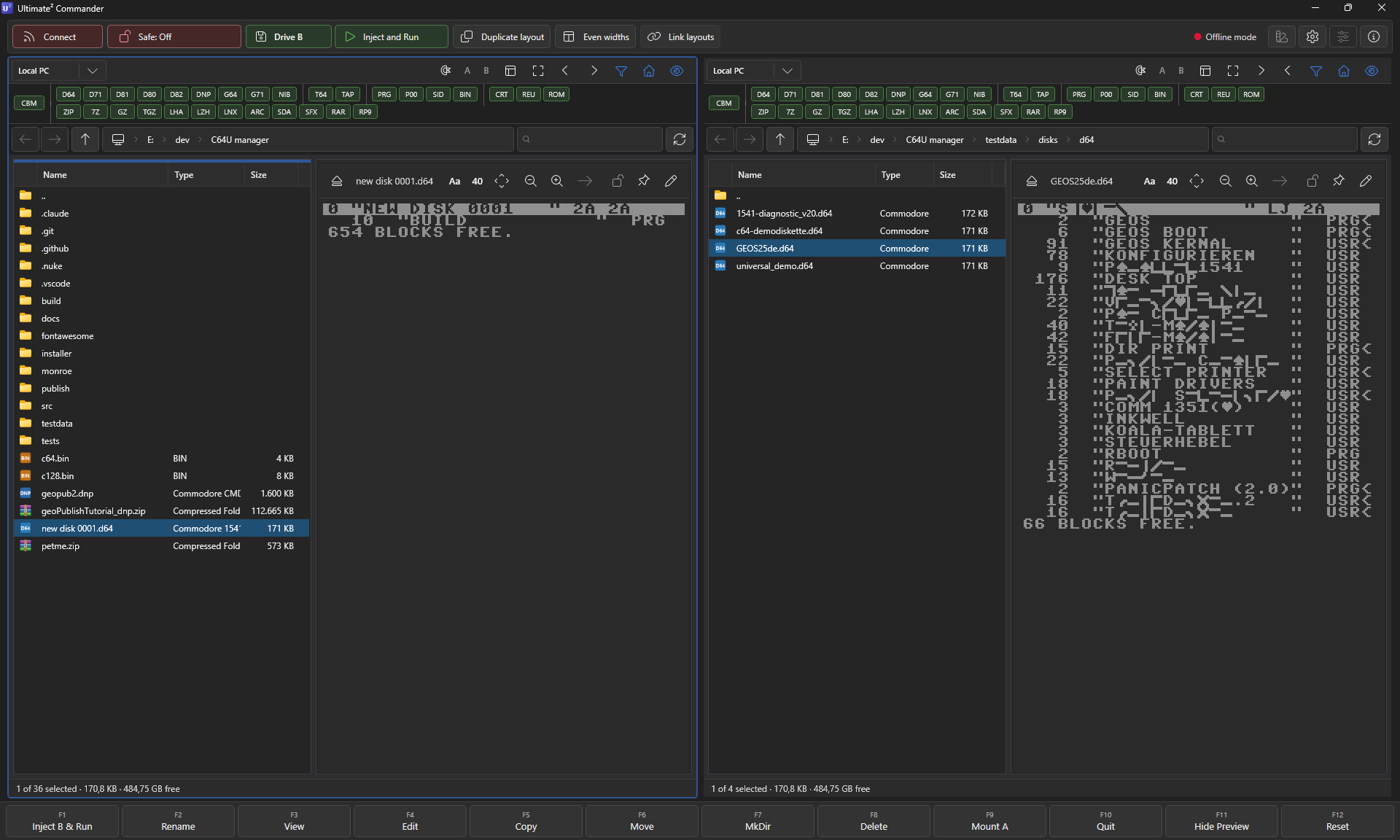
A Norton-style two-pane layout puts your local PC on one side and a second folder, an open disk image, or - if you have one - your Ultimate's filesystem on the other. The active pane is highlighted with a customisable focus ring; Tab swaps focus, every F-key acts on the active pane.
- Drag-and-drop between panes - and from Windows Explorer.
- Mirror-layout option: dock/preview changes in one pane mirror to the other.
- Per-pane home folder so each side starts where you actually work.
- Independent column visibility (Type, Size, Modified) - toggleable.
Diskbench three-column mode
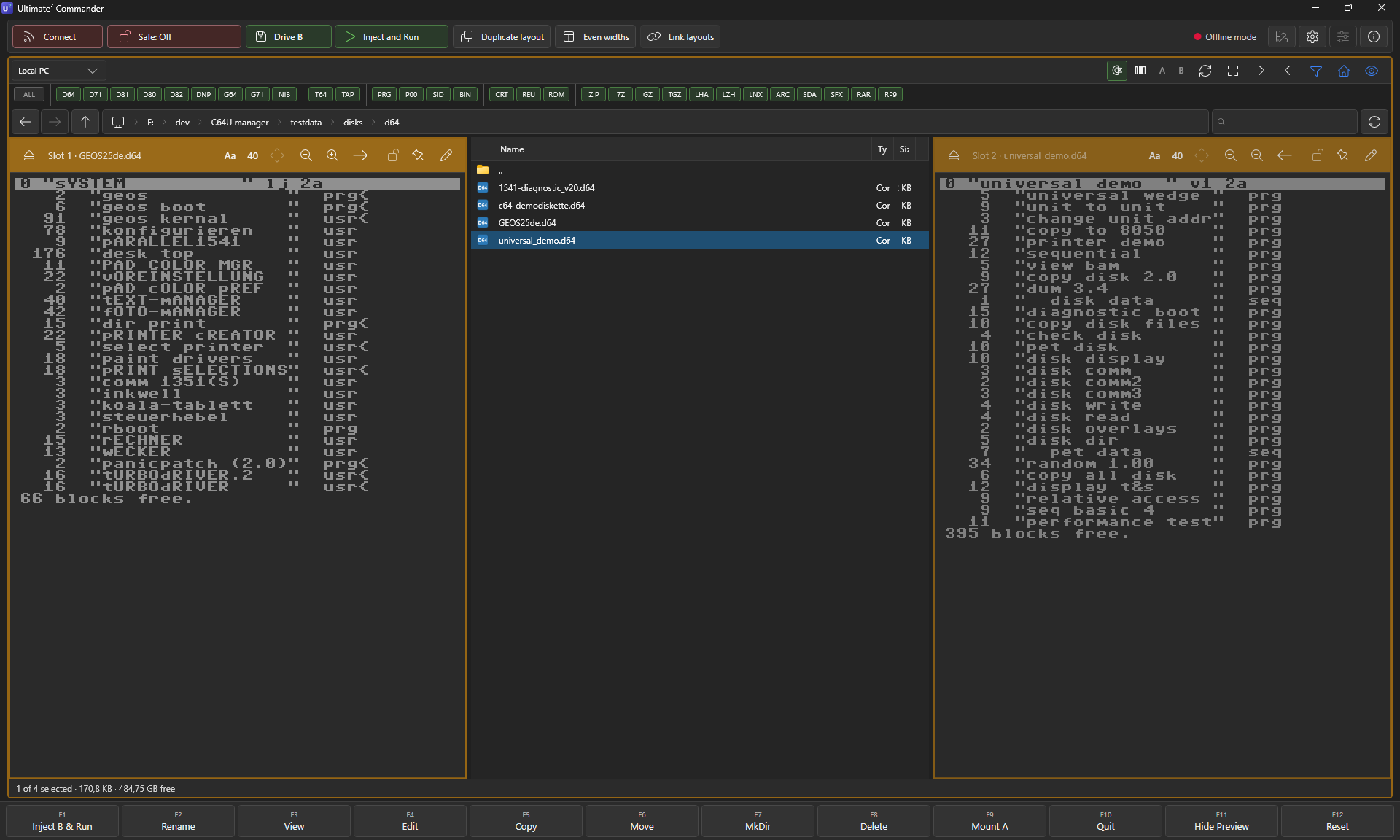
Press Ctrl+Shift+F11 to cycle into Diskbench: a central navigator with two pinned D64s flanking it. It's built for the classic Commodore workflow - compiling your own collections, like a music disk, a demo disk or a best-of, from many sources at once.
Pin an empty target disk on one side, then browse source disk after source disk through the central navigator and F5 each file straight across - no endless mount / unmount cycle while you fill one big disk. Pin / unpin from any disk via Ctrl+Left (slot 1) or Ctrl+Right (slot 2).
Live disk-image editing
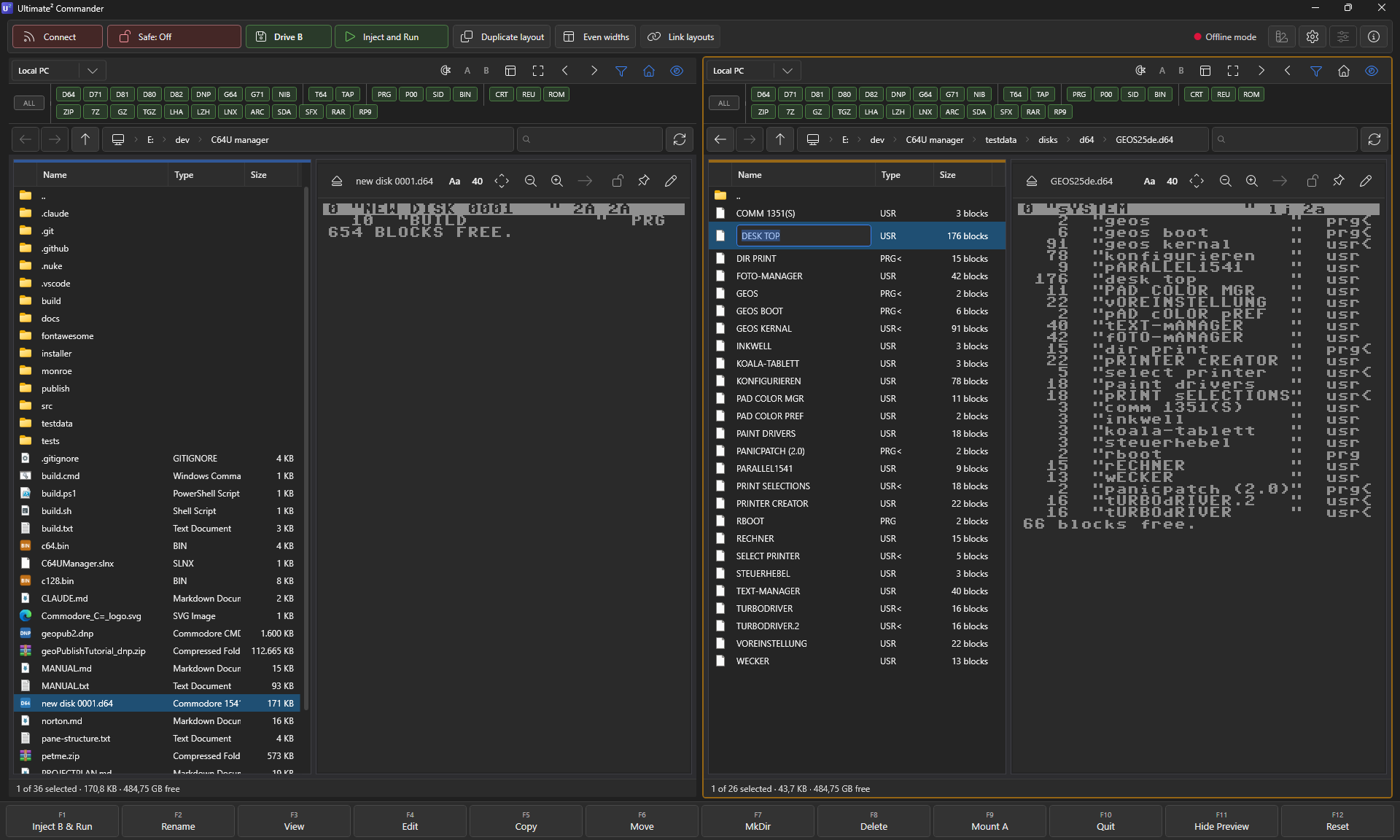
Open a .d64, .d71, or .d81 and it behaves like a folder in the pane. No extract-edit-repack cycle, no temp files, no separate "disk tool". Every operation you already know from Norton / Total / Far Commander works directly on the entries inside.
Files from Windows Explorer or the other pane land inside the open disk. Multi-select supported.
Drag entries straight to your desktop, the other pane, or another open disk. Bytes copy on drop.
Inline editor opens on the entry. RightAlt acts as Commodore key for PETSCII characters.
SCRATCH the entry from the BAM, blocks return to free, no quirks.
Auto-suffix like Star Commander:
GAME.PRG becomes GAME.001, fitting the disk's filename rules.Open two D64s in left and right panes, F6 moves an entry from one to the other.
All writes happen on the real disk image bytes via the in-house CBM filesystem layer (D64 - including the 40-track DolphinDOS / SpeedDOS / PrologicDOS variants - D71, D81, D80, D82 and DNP all support write; T64 / TAP are read-only). A Ctrl+Z undo stack covers copy, move, rename, delete on a single image so a slip is reversible. Safe Mode levels 2-5 gate writes if you want to browse without risk.
CBM disk & tape formats - read, write, create
Open the standard CBM-DOS images and the more exotic ones, then browse them like folders.
The D64 reader also handles the 40-track speeder-DOS layouts - DolphinDOS, SpeedDOS and PrologicDOS. G64 (raw GCR) isn't supported yet - it's on the roadmap.
Archive formats - eleven, browseable like folders
Archives open inline as if they were folders. Step into a .zip with Enter, find a .d64 inside it, step into that, run the .PRG - no extract step, no temp files visible to you.
* C64-SCENE ARCHIVES
- T64 · tape image as a PRG container
- LNX · Commodore Lynx archive
- ARC · SEA ARC, all six modes
- SDA · Self-Dissolving Archive
- SFX · Self-eXtracting LHA
* PC ARCHIVES
- ZIP read + write
- RP9 · RetroPlatform package
- GZIP · .gz, .tgz, .tar.gz
- LHA / LZH · -lh1- + -lh4..7-
- RAR · RAR4 + RAR5
- 7-Zip · LZMA / LZMA2 / Deflate
All non-ZIP formats are read-only in this version - open them, run the contents, copy entries out. ZIP is the only format with full mutation and ships with a .bak-rollback safety net.
Three ways to launch a PRG
Press F1 on a .PRG (or a PRG inside a D64) to run it the default way. Hold a modifier to pick a variant on the spot.
| Mechanism | What it does | Use it when |
|---|---|---|
| Inject | Streams the PRG straight into RAM via REST run_prg. | Fastest. No drive state changes. |
| Mount A | Mounts the parent disk image on drive 8 like a real 1541. | Multi-load games and disk-heavy software. |
| Mount B | Same, on drive 9. Keeps drive 8 free for another disk. | Two-drive setups and side-B operations. |
Each launch can be paired with a pre-reset: None (safest default), Hard reset (chip reset, RAM cleared), or Reboot Ultimate (full firmware reboot - gated behind a setting because it ends any running session).
Inline PETSCII directory preview
Hover or focus a D64 and the directory renders in proper PETSCII inside its own pane. Toggle between Off, Half, Mid (75%), and Full sizing per pane so you can squeeze the preview into wide or narrow layouts.
Device discovery
Click Scan in the settings dialog and Retro Commander sweeps your subnet looking for an Ultimate device. It pings TCP/80 and verifies via the REST API in roughly 1–2 seconds. No need to remember IP addresses or fish them out of your router.
And discovery is just the doorway. Once connected you get realtime writes across the wire, live status & full-config readout, power / reset / power-off control, shutdown-on-exit, and even SID playback on the real chip. See the full Ultimate guide →
Offline mode
A master kill-switch in Settings ▸ Connection that suppresses every device-side network call: no REST probes, no FTP login, no heartbeat, no auto-discovery. The app starts and runs as a plain dual-pane local file browser.
Useful on the road, when the C64U is powered off, or when you just want to organise files without any background chatter.
Five-level Safe Mode
A single status-bar toggle that cycles through five protection levels. Pick the lowest level that prevents the mistake you're worried about today.
- 1 · Off - nothing protected.
- 2 · Images - writes inside opened CBM disk images blocked.
- 3 · Remote - writes to the C64U over FTP blocked.
- 4 · Images and Remote - both of the above.
- 5 · Everything - also blocks writes to the local PC filesystem.
Docking & focus ring
Three docking presets per pane - preview right, navigator-top, preview-top. Pick one, drag freely, or mirror the other pane's layout.
The active-pane focus ring uses your accent colour by default, but you can override it: hex input, six preset swatches, opacity slider - exactly your shade.
Keyboard-first
An F-key bar at the bottom mirrors classic Norton/Total Commander muscle memory. Modifier keys pick variants without taking a hand off the keyboard.
| Keys | Action |
|---|---|
| F1 | Run with default mechanism |
| Shift+F1 | Mount A |
| Ctrl+F1 | Mount B |
| Alt+F1 | Load only (no run) |
| Ctrl+Alt+F1 | Hard reset, then default launch |
| Tab | Switch active pane |
| Ctrl+C / V / X | Standard Windows clipboard semantics |
Full cheat-sheet: Shortcuts in the documentation.
Account, trial & support
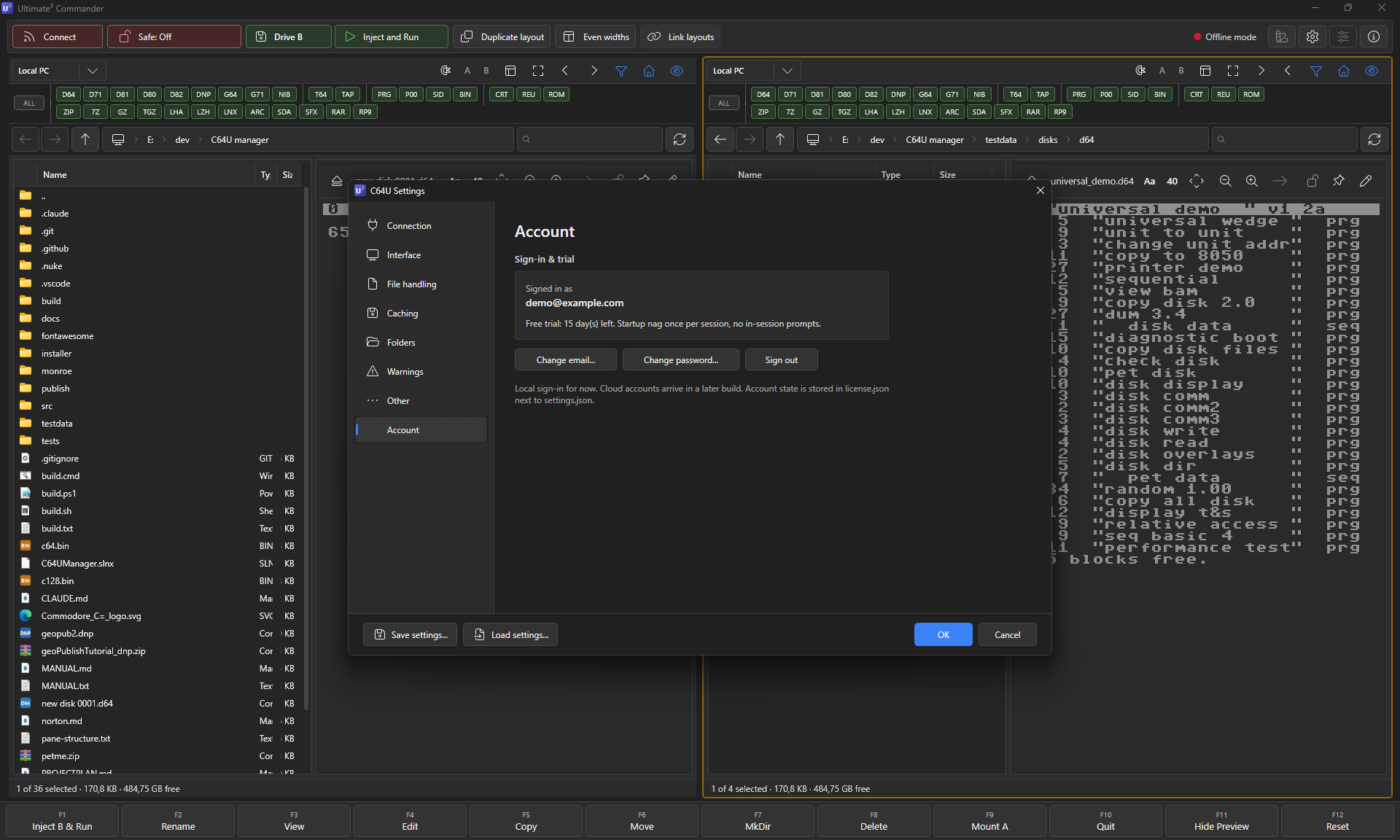
First launch opens a small sign-in dialog: pick a password, confirm your email, and you're in. That kicks off a 14-day free trial with the full feature set and no in-session prompts - just a quiet day-counter at startup.
After day 14 you have a choice. Either keep going on the free path (the app still works; you'll see a periodic donation reminder and a 15-minute per-session cap), or pick one of three tiers to keep working without limits:
- Entry — € 8. 3 months, 2 devices.
- Standard — € 16. 12 months, 3 devices.
- Elite — € 32. Lifetime, 5 devices. Listed on the Elite supporters page (opt-in).
14-day offline grace, self-service device swap, refund within 14 days - full pricing rationale on the donate page.
Lite or Portable?
Lite (~3 MB)
Just the app. Requires the .NET 10 Desktop Runtime - Windows installs it on demand.
Best for power users who already keep the .NET runtime installed.
Portable (~55 MB)
A single self-contained .exe with the runtime bundled. Drop it on a USB stick.
First launch is ~1 s slower while the runtime extracts to %TEMP%.
Both flavours are feature-identical. Settings live in a settings/ folder next to the .exe (portable) or in %APPDATA%\C64UManager when that folder is read-only.