* FOR ULTIMATE OWNERS
Your Ultimate, at your fingertips
Everything else in Retro Commander works standalone - this is the part that lights up when you own the hardware. Connect an Ultimate and the app becomes a live remote for the real machine: find it, browse it, edit its disks, feed it, and launch straight onto it, all from the keyboard.
Find it in seconds
Start Retro Commander with no address set and it looks for an Ultimate by itself; one device found is saved and connected. Or click Scan on the Connection tab of Settings - it probes TCP/80 across your subnet and confirms over the REST API, typically in a second or two. No fishing IP addresses out of your router.
Prefer to be explicit? Type the address yourself and hit Test Connection for an instant status dot. Once it's set, the app connects on its own next time. Connecting, step by step →
Browse it, edit its disks
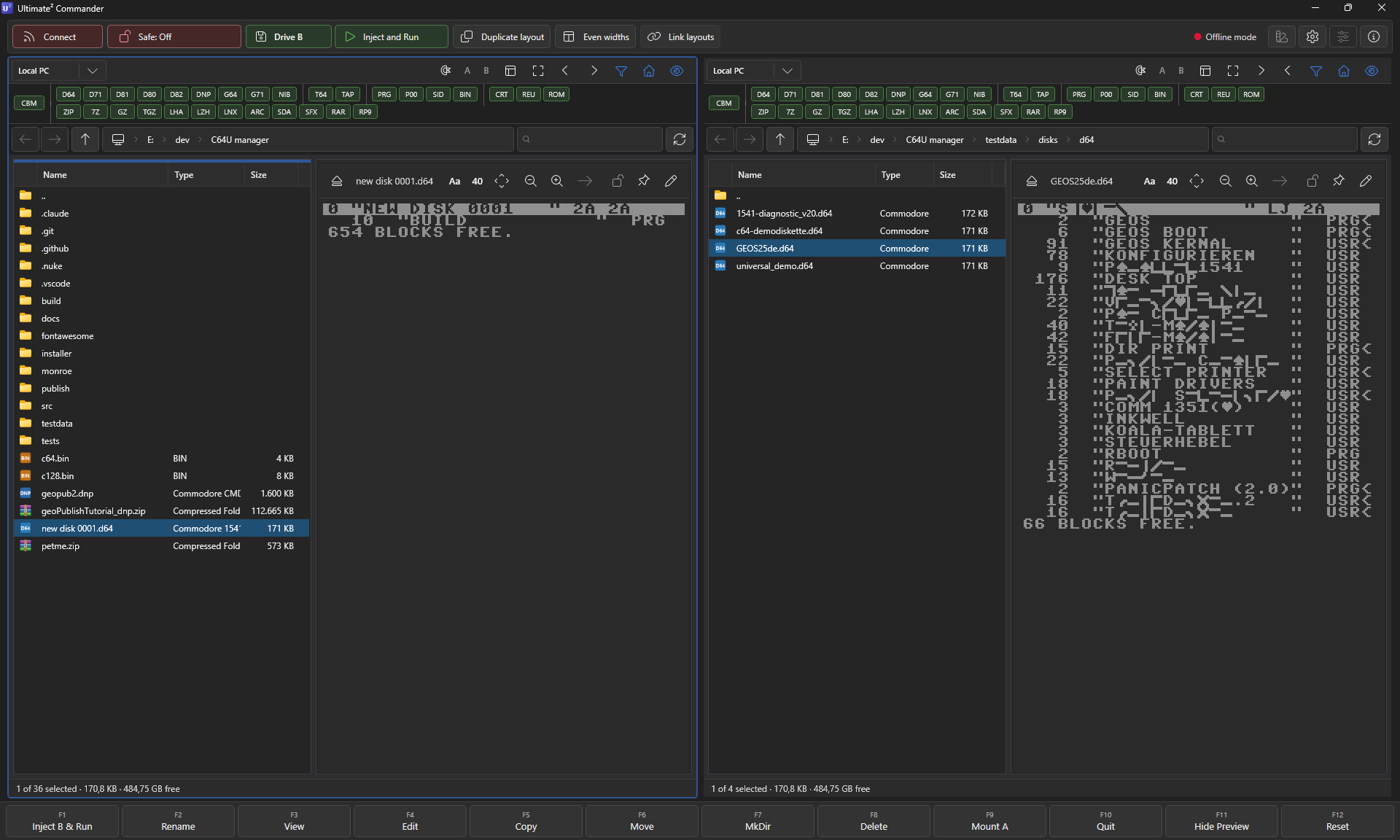
Your PC sits in one pane, the Ultimate's storage in the other. Drag a file across and it's written across the wire, onto the device's own storage. Copy, move, rename, make folders - and Ctrl+Z undoes it.
New in 1.0: edit a disk right on the device. Open a D64 that lives on the C64 Ultimate and work on it in place - rename, scratch, drop files in, insert a stamp, the same D64 editor moves you use locally. Changes go up as you work, and anything pending is saved before you eject, switch or quit.
Two transports, one window. Files move over FTP; commands (launch, reset, mount) go over the REST API. No juggling FileZilla and the device's web UI in separate tabs.
* THE PAYOFF
Launch straight onto real hardware
Highlight a PRG - on your PC, on the device, or inside a D64 - and press F1. The app mounts the disk and starts it on the actual machine across the room; no squinting at the C64's own file browser, no hunting for the right disk. Hold a modifier to pick how, or press F9 to just mount a disk on drive A.
Every launch can carry a pre-reset: None (the safe default), Hard reset, or Reboot Ultimate (gated behind a setting because it ends any running session). All launch options →
Four ways to launch a PRG
Take the controls
Retro Commander reads the device's state and drives its switches - so you rarely have to touch the C64 itself.
System information
The Device info button opens the Ultimate's current state - drives, network, firmware - pulled straight from the device. Copy it, save it, or export a .cfg.
All settings, at a glance
Tick Show all settings and the same window lists your device's full configuration - read it from your desk, no on-screen C64 menu required.
Power & reset
Hard reset (F12), reboot (Shift+F12) or power off (Ctrl+Alt+F12), sent from your PC.
Power off on quit
Quit while connected and Retro Commander asks whether to power the Commodore down behind you - or remembers your answer, if you'd rather not be asked again.
Remote write-protect
Safe Mode can block every write to the device - browse and launch all you like without touching a byte.
Offline mode
A kill-switch silences every REST, FTP and heartbeat call - for the road, or when the Ultimate is powered off.
* THE FUN ONE
Play SIDs on the real chip
Browse your SID collection on the PC, pick a Rob Hubbard classic, and press F1. The Ultimate hands it to the actual SID chip - or its FPGA recreation - and the tune plays out loud on real hardware, across the room. Compute! Sidplayer .mus files go the same way.
No load, no run, no fuss - the quickest way to turn a folder of .sid files into a jukebox for your Commodore 64.
Plug in and take command
In open beta: the full app, with live Ultimate control included. Retro Commander 1.0 alpha, a native Windows app of a few megabytes. Who makes it?