COMPANION TOOL · 0.2
EasyNav
D64 viewer for Windows Explorer
C64 disk images in Explorer's preview pane: real PETSCII, no emulator, and file handling right from the preview
a free companion tool for Retro Commander
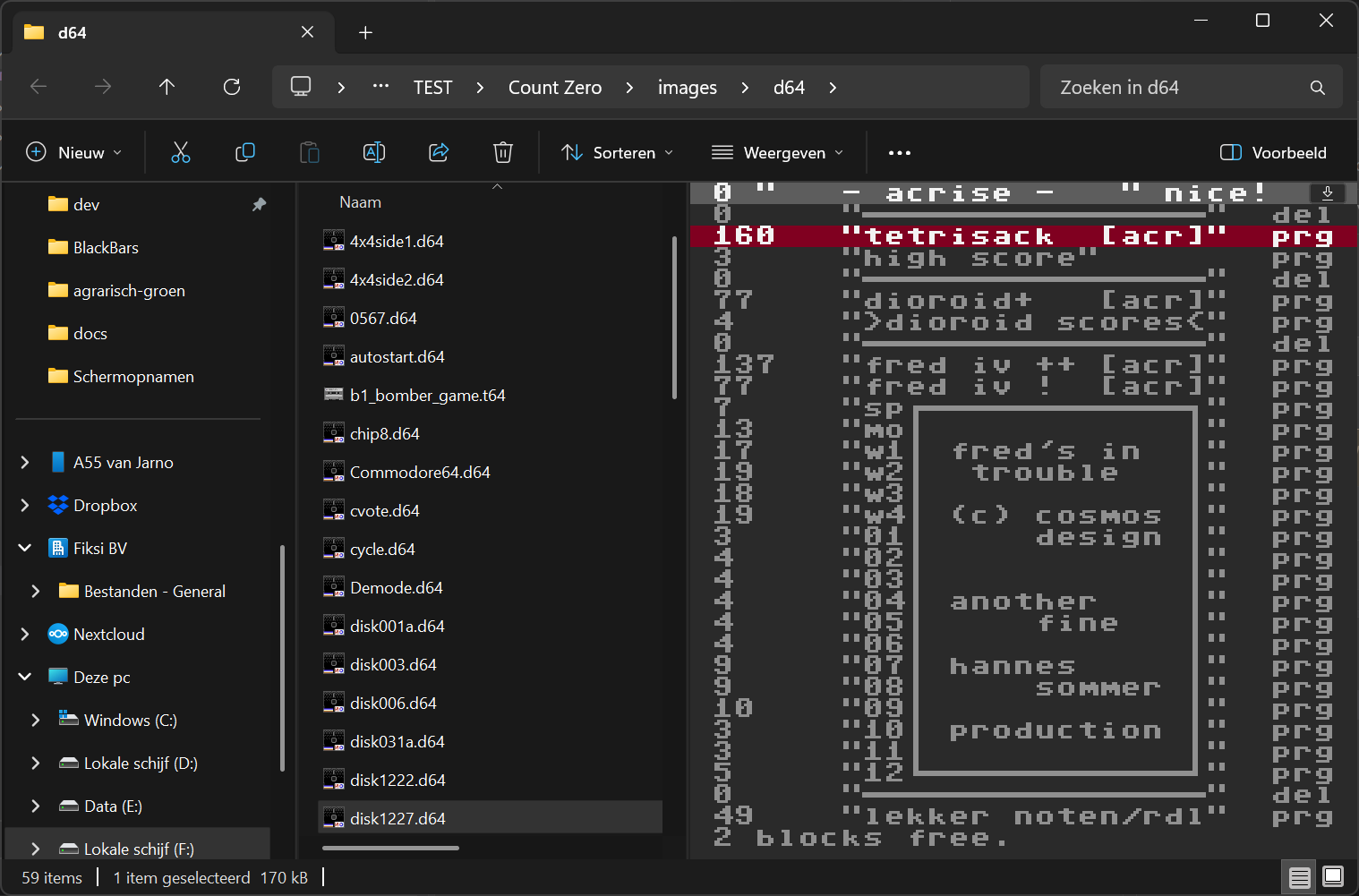
EasyNav is a free D64 viewer for Windows File Explorer. Select a .d64, .d71, .d81 or other CBM disk image in Explorer and the preview pane shows its directory in real PETSCII, without starting an emulator or opening a program. Drag files out of the preview to extract them (a PRG lands as a PC file), or drag files onto it to write them into the disk image.
Why EasyNav
Apart from DirMaster by Style, I don't know of a single other tool that shows C64 disk images in Windows Explorer's preview pane. For that alone I have always been a big fan of DirMaster's Explorer preview, never mind everything else the main program can do.
But handy as it is, that preview dates from 2014, more than ten years ago, and it always missed a few things that seem really valuable to me. EasyNav adds them:
- A real PETSCII preview, in both character sets: the directory as the C64 draws it, dir-art included, in Upper/Graphics or Lower/Upper. One click on the icon in the corner switches, and EasyNav remembers your choice.
- File handling from the preview itself: drag a file out of the pane into another Explorer window to extract it, or drag one from another Explorer window onto the pane to put it on the disk. No app to open.
EasyNav is a small companion tool for Retro Commander, built on Retro Commander's own disk core. You don't need Retro Commander to use it.
The basics
- Drag to extract: drag a file from the preview pane into another Explorer window, a folder or the desktop, and it lands there as a PC file, named and filled the way Retro Commander extracts it. No extract dialog, no menu. The disk image itself is not touched.
- Drag into the disk: drag a file from another Explorer window onto the preview pane and it is written into the disk image by Retro Commander's own disk core, then shown selected in the directory. A write either completes or leaves the image exactly as it was. When a file can't be written (a full disk, a read-only format such as .g64 or .nib), the pane tells you in one line, with no dialog popping up over Explorer.
- Select several: click a file, move with the arrow keys, Home/End and PgUp/PgDn. Ctrl and Shift select several, Ctrl+A selects all, and the whole selection drags out in one go. The keys go to the pane once you click in it; Tab takes you back to Explorer.
And the rest
- The directory in real PETSCII: disk name and ID, every file with its type and block count, dir-art included, and the blocks free, in Upper/Graphics or Lower/Upper. Scroll with the mouse wheel. Drawn by Retro Commander's own renderer, in Retro Commander's preview colours.
- Nine formats: .d64, .d71, .d81, .d80, .d82, .dnp, .dfi, .g64 and .nib (the table below).
- Inside ZIP files too: a .d64 inside a .zip previews without unpacking it first, so you can arrow through a whole collection.
- Nothing phones home: no telemetry, no network code, no account.
- Your double-click stays yours: EasyNav adds only the preview. It doesn't take over your file associations, so a .d64 still opens in your emulator, in Retro Commander, or wherever it opened before.
- One install, no reboot: the installer asks for administrator rights once, so the preview can write disk images and take drops from Explorer. Uninstalling removes only EasyNav's own registry keys.
- Made for today's Windows: Windows 10 and 11, 64-bit, native code.
- Completely free: no account, no limits.
Supported disk image formats
| Extension | Disk | Preview | Drop files in |
|---|---|---|---|
| .d64 | Commodore 1541 (C64) | yes | yes |
| .d71 | Commodore 1571 (C128) | yes | yes |
| .d81 | Commodore 1581 (3.5") | yes | yes |
| .d80 | Commodore 8050 | yes | yes |
| .d82 | Commodore 8250 | yes | yes |
| .dnp | CMD native partition | yes | yes |
| .dfi | DreamLoad file archive | yes | yes |
| .g64 | 1541 GCR image | yes | read-only |
| .nib | 1541 nibbler image | yes | read-only |
Windows 10 or 11, x64. One small installer (about 2.5 MB). Installing over 0.1 updates it in place. What's new
SHA-256: 0b9aa6564290478ee8a1dbd6470156f4fcdbb3c5a975c995fdca22420c045511
Getting started
- 1. Run the installer. Explorer picks EasyNav up right away; no restart needed.
- 2. In File Explorer, turn on the preview pane: View > Preview pane, or press Alt+P.
- 3. Select a disk image. Its directory appears in the pane.
- 4. Open a second Explorer window next to it and drag files between the two: from the pane to extract, onto the pane to write into the disk.
Questions
Is EasyNav free?
Yes. EasyNav is completely free: no account, no limits.
Do I need Retro Commander to use EasyNav?
No. EasyNav is built on Retro Commander's disk core, but it runs on its own. The two work side by side.
Which disk image formats does EasyNav support?
D64, D71, D81, D80, D82, DNP and DFI, which you can also write files into, plus G64 and NIB, which are shown read-only.
Does EasyNav change my file associations?
No. It adds only the preview. A .d64 still opens in whatever program opened it before.
Can a failed write damage my disk image?
EasyNav writes a new copy of the image beside it, reads it back to check it, and only then swaps it in. If anything fails, the original stays exactly as it was.
How do I open a D64 file on Windows?
Install EasyNav, turn on Explorer's preview pane (Alt+P) and select the .d64: the pane shows its directory. To run the program you still need a C64, an Ultimate or an emulator such as VICE; to see and copy what is on the disk, you don't.
How do I extract a PRG file from a D64 image?
Select the file in the preview pane and drag it into another Explorer window, a folder or the desktop. Several files at once work too.
Does EasyNav work in Windows 11 File Explorer?
Yes, in Windows 10 and Windows 11, 64-bit. Turn the preview pane on with View > Preview pane, or Alt+P.
Can I use EasyNav next to DirMaster?
Yes. If DirMaster's preview is registered for your disk images, the installer offers to take the preview over (a ticked box) and gives it back to DirMaster when you uninstall EasyNav. And when you want more than a preview, try Retro Commander, the disk-image manager EasyNav grew out of: two panes, keyboard-first, PETSCII everywhere, rename in PETSCII, reorder the directory, restore deleted files, directory art, and disk images inside ZIP, 7z and RAR opened as folders. See how it compares.
Does EasyNav send any data?
No. EasyNav has no telemetry and no network code: it never phones home, counts use or opens a connection.
Changelog
0.2 · 10 November 2026
- G64 and NIB images show their directory. In 0.1 the preview pane stayed empty for a .g64 or .nib. EasyNav now decodes the GCR track data the way Retro Commander does, so you see the same PETSCII listing as for a .d64.
- Drag files out of a G64 or NIB, the same way you extract them from a .d64. These two formats stay read-only: dropping files onto them is still refused.
0.1 · 8 November 2026
- First release: the PETSCII directory in Explorer's preview pane in both character sets, select and drag files out, drop files in, nine disk image formats, .d64 inside a .zip, and the DirMaster takeover in the installer.
Need more than a quick drag? EasyNav is the quick look and the quick copy. For everything else there is Retro Commander, the file manager EasyNav grew out of:
- two panes in the Norton Commander tradition, keyboard-first, with PETSCII everywhere;
- rename in PETSCII, reorder the directory, restore deleted files, undo 64 steps;
- disk images inside ZIP, 7z and RAR opened as folders, no unpacking, and searched too;
- directory art with a stamp library and an editor;
- run PRGs in VICE and other emulators, or on a real Ultimate 64, Ultimate-II+ or C64 Ultimate.
Using Retro Commander too? They work fine side by side, and neither needs the other. Retro Commander's own Explorer preview for disk images is moving into EasyNav, so EasyNav is where it keeps growing.
Dropping files in writes into your disk image. Keep copies of the disks you care about. Found something? Tell me.